How to calculate standard deviation in Google Sheets
In one line: put your numbers in a column and type =STDEV.S(A1:A20). The rest of
this page covers which function to use when, the ARRAYFORMULA pattern for
conditional SD, and where Sheets differs from Excel.
Standard deviation in Google Sheets: the short version
- Put your values in a column, say A1 to A20, one number per cell, nothing else in the range.
- Click an empty cell.
- Type
=STDEV.S(A1:A20)and press Enter.
That gives the sample standard deviation, which is what you want unless
those twenty rows are the complete group you are describing. If they are, use
=STDEV.P(A1:A20) instead. Paste the same column into the
standard deviation calculator to check your formula is picking up the right cells.
Which standard deviation to use: STDEV.S or STDEV.P
| Function | Divides by | Use for | Notes |
|---|---|---|---|
| STDEV.S | n − 1 | Sample | The usual choice |
| STDEV.P | n | Population | Only when nothing is left out |
| STDEV | n − 1 | Sample | Legacy name for STDEV.S; still works |
| STDEVP | n | Population | Legacy name for STDEV.P |
| VAR.S / VAR.P | n − 1 / n | Variance | The value before the square root |
Google Sheets does not have the STDEVA / STDEVPA variants that
Excel carries for backward compatibility with text-as-0 behaviour, which removes the main
source of a silent error. A stray text label is simply ignored by STDEV.S, not
treated as a data point of zero.
Standard deviation with a condition (the ARRAYFORMULA difference)
There is no STDEVIF in Sheets either. To get the standard deviation of only the
rows matching a criterion, wrap an IF inside STDEV.S and put
ARRAYFORMULA() around the whole thing:
=ARRAYFORMULA(STDEV.S(IF(B2:B100="North", A2:A100)))
This is the single most important difference from Excel. In Microsoft 365 and Excel 2021 the
same pattern spills automatically (or needs Ctrl+Shift+Enter
in older Excel). In Google Sheets the ARRAYFORMULA() wrapper is required, and it
produces a single cell, not a spill range. For more than one condition, multiply the tests:
=ARRAYFORMULA(STDEV.S(IF((B2:B100="North")*(C2:C100>50), A2:A100)))
The range of empty cells returned by IF is skipped by STDEV.S, so
the calculation is taken over just the matching rows.
Things Google Sheets has no function for, built from two functions
| You want | Build it as |
|---|---|
| Relative SD (%RSD) | =STDEV.S(A1:A20)/AVERAGE(A1:A20)*100 |
| Coefficient of variation | =STDEV.S(A1:A20)/AVERAGE(A1:A20) |
| Standard error of the mean | =STDEV.S(A1:A20)/SQRT(COUNT(A1:A20)) |
| Weighted mean | =SUMPRODUCT(A2:A20,B2:B20)/SUM(B2:B20) |
| 95% margin of error | =CONFIDENCE.T(0.05,STDEV.S(A1:A20),COUNT(A1:A20)) |
Worked example
Six exam scores in A2:A7: 74, 81, 90, 77, 65, 88. The mean is 79.2.
=STDEV.S(A2:A7) → 8.64
A sample of six scores, so the n − 1 divisor is correct. The population figure, if these six
were the whole class you are describing, is =STDEV.P(A2:A7) → 7.88 — about 9%
smaller, the usual gap for a small sample.
Where Sheets and Excel disagree
- Conditional SD. Sheets needs
ARRAYFORMULA(); Excel 365 spills the array, older Excel needs the Ctrl+Shift+Enter entry. - Text handling. Excel’s
STDEVAcounts text as 0; Sheets has no equivalent, so a stray label never quietly becomes a data point. - Legacy names. Both accept
STDEV/STDEVPfor backward compatibility; both prefer the dottedSTDEV.S/STDEV.P.
Check your spreadsheet against this calculator
Copy the column out of your sheet and paste it below. The result should match your
STDEV.S exactly, and if it does not, the count reported here will usually show
why, because it tells you how many values were actually read.
Separate numbers with commas, spaces or new lines, or paste a spreadsheet column.
Decimals and negatives are fine; write 10:3 for a value that occurs 3 times.
Your results will appear here: the standard deviation first, then the rest of the summary and a chart.
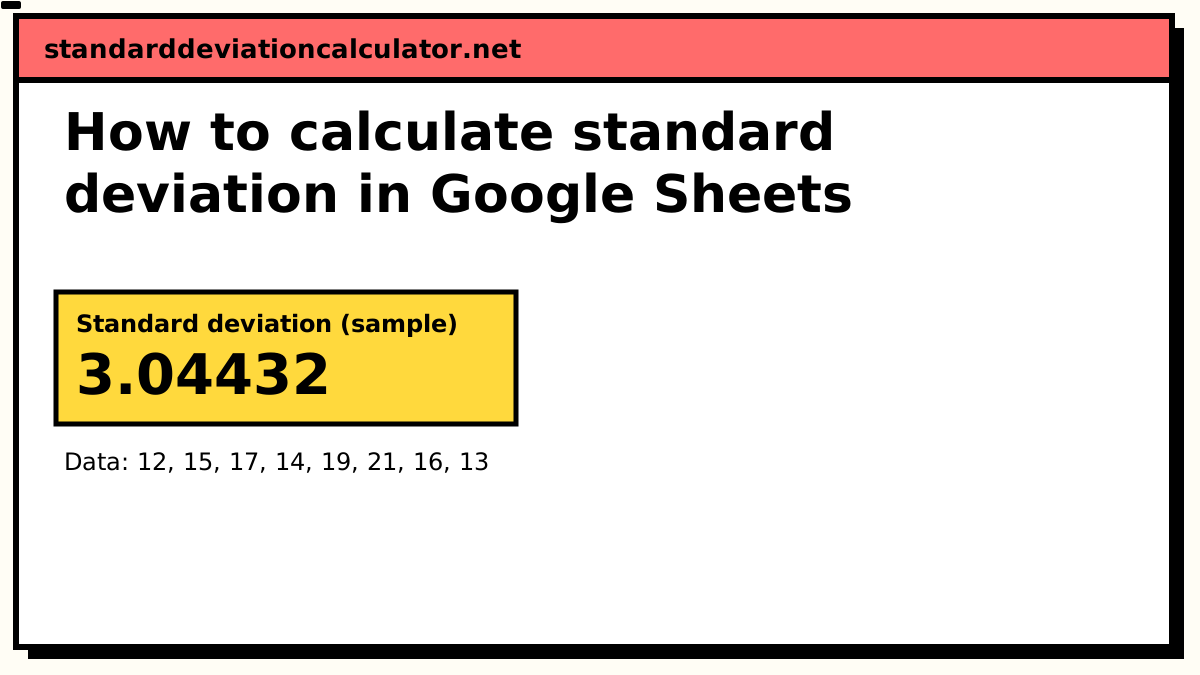
Standard deviation (sample)
3.04432
3.04
Your values typically sit about 3.04 above or below their mean of 15.88, in the same units as your data. 5 of 8 values (63%) fall between 12.83 and 18.92, within one standard deviation of the mean; for normally distributed data about 68% would.
Population SD (σ): 2.8477, if these values are the whole group.
- Count (n)
- 8
- Mean (x̄)
- 15.875
- Variance (s²)
- 9.26786
- Standard error
- 1.07633
- Minimum
- 12
- Q1 (25%)
- 13.75
- Median
- 15.5
- Q3 (75%)
- 17.5
- Maximum
- 21
- Range
- 9
More statistics (5)
- Relative SD (%RSD)
- 19.1768%
- Coefficient of variation
- 0.191768
- Sum (Σx)
- 127
- Sum of squares, Σ(x − x̄)²
- 64.875
- IQR (Q3 − Q1)
- 3.75
Data distribution
Shaded bands mark ±1, ±2 and ±3 SD from the mean. 5 of 8 values (63%) fall within ±1 SD.
Chart as text
Mean 15.875, sample standard deviation s = 3.04432, from 8 values between 12 and 21.
- Within ±1 SD (12.83 to 18.92): 5 of 8 values (63%). About 68% for normal data.
- Within ±2 SD: 8 (100%). About 95% for normal data.
- Within ±3 SD: 8 (100%). About 99.7% for normal data.
Show the working, step by step
Related calculators
-
Standard deviation calculator
Paste a column straight from a sheet.
-
SD in Excel
The same functions, plus the cases Excel has no built-in for.
-
Variance calculator
The VAR.S and VAR.P equivalents.
-
Relative SD (%RSD)
Built from two functions in Sheets too.
-
All standard deviation calculators
The whole spread-and-shape set, grouped by input shape.
Common questions
What is the formula for standard deviation in Google Sheets?
=STDEV.S(A1:A20) for a sample, =STDEV.P(A1:A20) for a
population. Replace the range with your own cells. These are the same function names
as Excel, so a formula written in one works in the other.
What is the difference between STDEV.S and STDEV.P in Google Sheets?
STDEV.S divides by n − 1 and is for sample data. STDEV.P
divides by n and is for a complete population. Use STDEV.S unless your rows
genuinely are the entire group.
The full comparison is here.
How do I calculate a conditional standard deviation in Google Sheets?
Wrap the IF in ARRAYFORMULA(), because Sheets does not
spill array results the way Microsoft 365 does:
=ARRAYFORMULA(STDEV.S(IF(B2:B100="North", A2:A100))). This is the one
place Sheets and Excel differ on this pattern.